





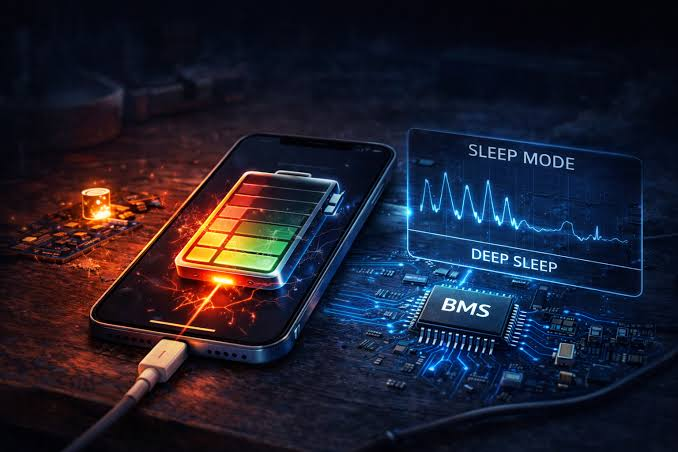
Have you ever closed your laptop, left it in your bag overnight, and opened it the next morning only to discover that the battery has dropped significantly? This is a common problem for laptop users. Sleep mode is designed to reduce power consumption while allowing you to resume your work quickly, but sometimes a laptop continues using more power than expected.
Laptop battery drain during sleep can happen because of background applications, connected devices, network activity, outdated drivers, or power management settings. In some cases, the laptop may not enter its intended low-power state at all. Understanding the cause is the first step toward fixing the problem.
Whether you use your laptop for studying, office work, gaming, or everyday browsing, learning a few practical troubleshooting techniques can help you preserve battery life. Technology resources such as magfusehube can also be part of your broader approach to finding useful information about everyday digital problems.
What Happens When a Laptop Enters Sleep Mode?
Sleep mode is a low-power state that allows your laptop to resume work faster than a complete shutdown. Instead of closing every application, the computer keeps your active session available so you can return to your documents, browser tabs, and other tasks.
However, sleep does not necessarily mean that every component stops consuming electricity. Depending on the laptop model and its configuration, certain hardware components may remain active to support notifications, network connectivity, or other features.
Modern Windows laptops may also use a sleep technology called Modern Standby. With this feature, the system can perform limited background activities while appearing to be asleep. If these activities occur too frequently or a device fails to enter a low-power state, battery consumption can increase.
It is therefore important to distinguish normal battery usage from unusually high power drain.
1. Background Applications May Continue Running
One common reason for battery drain during sleep is background activity. Some applications and system processes may continue performing tasks even after you close the laptop lid.
For example, cloud storage software may synchronize files, messaging applications may check for updates, and system services may perform maintenance tasks. These activities can consume additional power, particularly when several processes remain active.
How to Reduce Background Activity
Start by closing applications you do not need before putting your laptop to sleep. Check whether cloud synchronization, large downloads, or software updates are running.
You can also review which applications are allowed to run in the background through Windows settings, although the available options vary by application and Windows version.
If the problem began after installing a particular application, temporarily disable its startup or background activity and observe whether battery performance improves.
Avoid disabling essential Windows services simply to save power. Doing so can create additional problems without necessarily fixing the underlying cause.
2. Your Laptop May Not Be Entering Deep Sleep
Sometimes a laptop appears to be asleep, but it continues consuming more electricity than expected. This can happen when the system uses a sleep mode that allows background activity or when a software or hardware component prevents the computer from entering its intended low-power state.
Modern Standby is particularly relevant on supported devices because it allows certain system activities to occur while the screen is off.
Check Your Laptop’s Sleep Capabilities
Windows includes a built-in command-line tool that can help you identify the sleep states supported by your laptop.
Follow these steps:
- Open the Start menu.
- Search for Command Prompt.
- Select the option to run it as an administrator.
- Type powercfg /a and press Enter.
- Review the sleep states listed by Windows.
The output shows which sleep states are available and may explain why certain states cannot be used. It does not, by itself, identify every cause of battery drain.
If your laptop supports Modern Standby, review the manufacturer’s guidance before changing advanced power settings.
3. Network Connectivity Can Consume Extra Power
Wi-Fi and other connected features can contribute to battery consumption while your laptop is sleeping. On some systems, network connectivity allows applications or system services to perform background tasks even when the display is off.
This may be useful when you want your computer to remain connected, but it can be unnecessary if your main priority is preserving battery power overnight.
What You Can Do
Check your laptop’s power settings for options related to network connectivity during sleep. Depending on the hardware and Windows version, you may be able to limit connected standby activity.
If you do not need to receive notifications or synchronize files while the laptop is sleeping, consider disabling unnecessary connectivity before closing the lid.
You can also test the effect of Airplane mode before sleep. If battery drain decreases noticeably, network-related activity may be contributing to the problem.
Keep in mind that this test is not conclusive on its own because other background processes may also change their behavior.
4. Outdated Drivers Can Cause Power Problems
Drivers allow Windows to communicate with hardware such as the processor, graphics adapter, wireless network card, and other components. When a driver has a bug or is incompatible with the current operating system, it may interfere with normal power management.
For example, a wireless adapter might fail to enter a low-power state, or a graphics driver might prevent the system from transitioning properly into sleep.
How to Update Drivers Safely
Open Windows Update and check for available updates. Review optional driver updates if they are offered for your device.
You can also visit your laptop manufacturer’s official support website and search for drivers using your exact model number.
Prioritize relevant updates for the chipset, graphics, wireless adapter, and system firmware when the manufacturer recommends them.
Avoid downloading drivers from unfamiliar websites. Installing an incorrect driver or unofficial firmware can create additional stability and security problems.
If the battery issue started immediately after a driver update, check whether the manufacturer provides a newer version or instructions for safely reverting the change.
5. Connected USB Devices May Keep Using Power
External accessories can contribute to battery drain while your laptop is sleeping. Examples include USB receivers, external storage drives, wired controllers, and other connected peripherals.
Some laptops continue supplying power to selected USB ports even when the computer is in sleep mode. A connected device may also interfere with the system’s transition into a low-power state.
Test Your Accessories
Before putting your laptop to sleep, disconnect unnecessary USB devices, external drives, and accessories.
Leave the laptop sleeping for a few hours and compare the battery level with previous results.
If the drain improves, reconnect your devices one at a time to identify whether a particular accessory is contributing to the problem.
Some laptops provide BIOS or manufacturer-specific settings that control USB power during sleep. Change these settings only when you understand their purpose and have checked the device manufacturer’s instructions.
6. Your Laptop’s Battery May Be Aging
Not every battery problem is caused by sleep settings. Lithium-ion batteries gradually lose their ability to hold a charge as they age and go through charging cycles.
An older battery may lose percentage more quickly than a newer one, particularly when the laptop is performing background tasks or operating under demanding conditions.
Check Your Battery Health
Windows can generate a battery report that provides information about battery capacity and usage history.
Open Command Prompt and run:
powercfg /batteryreport
Windows will generate a report and display its saved location. Open the report in your browser and compare the design capacity with the full charge capacity.
A significant difference suggests that the battery has lost some of its original capacity. However, this report does not directly measure how much power your laptop consumes during sleep.
If the battery is swollen, unusually hot, or physically damaged, stop using the device and seek professional assistance. A damaged battery should not be treated as an ordinary software issue.
7. Change Your Power Settings
Incorrect or unsuitable power settings can contribute to excessive battery use. Reviewing these settings is a useful step before attempting more complicated troubleshooting.
Open Settings in Windows and navigate to System, then Power & battery. The exact options may differ depending on your device.
Look for settings related to power mode, screen timeout, energy recommendations, and lid behavior. Make sure the laptop is configured to enter sleep when you expect it to.
Also check what happens when you close the lid. If the laptop is configured to remain active, closing the lid may turn off the display without properly suspending the system.
For additional guidance on choosing between sleep, hibernation, and shutdown, consult Microsoft’s official instructions on power states and shutting down or hibernating a Windows PC.
8. Use Hibernate When You Need to Save More Battery
If your laptop loses a substantial amount of charge during sleep, hibernation may be a practical alternative.
Sleep keeps the session available in a low-power state, while hibernation saves the session to storage and powers down the system more completely. As a result, hibernation generally uses less power than sleep.
When Should You Use Hibernate?
Hibernate is particularly useful when you plan to leave your laptop unused for several hours or overnight.
To check whether it is available, open the Start menu and review the power options. Some systems may require you to enable hibernation through Windows settings or administrator commands.
If you regularly carry your laptop in a backpack, hibernation can also help reduce the risk of the computer waking accidentally and generating unwanted heat.
The trade-off is that resuming from hibernation usually takes longer than waking from sleep. However, that small delay may be worthwhile if preserving battery life is your main concern.
9. Run a Simple Battery Drain Test
Before making several changes at once, perform a controlled test to identify the likely cause of the problem.
First, charge your laptop to a convenient battery level. Close unnecessary applications and disconnect external accessories. Record the current battery percentage, then put the laptop into sleep mode for a fixed period, such as two hours.
When you resume work, note the remaining battery percentage.
Repeat the test under similar conditions after changing one setting, such as disabling network connectivity during sleep or disconnecting USB accessories.
Changing one variable at a time makes it easier to determine which adjustment has the greatest effect.
Remember that battery drain varies by laptop model, battery age, temperature, and sleep technology. A small drop does not necessarily indicate a fault, and there is no single percentage that applies to every device.
Conclusion
Laptop battery drain during sleep can result from background applications, network activity, outdated drivers, connected accessories, unsuitable power settings, or an aging battery. The most effective solution depends on which factor is responsible for the problem.
Start with simple checks: close unnecessary applications, disconnect external devices, review lid behavior, and test battery usage over a consistent period. If the problem continues, examine your laptop’s sleep capabilities, update relevant drivers, and generate a battery report.
For longer periods without use, consider hibernation instead of sleep. By troubleshooting systematically and making changes one at a time, you can identify the cause of excessive battery drain and make your laptop more reliable for everyday use.